Stream to the whole world — you speak yours, they read theirs.
Twitch global chat · YouTube multilingual viewers · cross-border co-streams · VTuber broadcasts — Chat-Box Translate handles both directions of viewer chat; Cross-Language Mic carries voice across co-stream guests.
↓ Download Babelarc · No installerWhy streamers run Babelarc to operate across languages
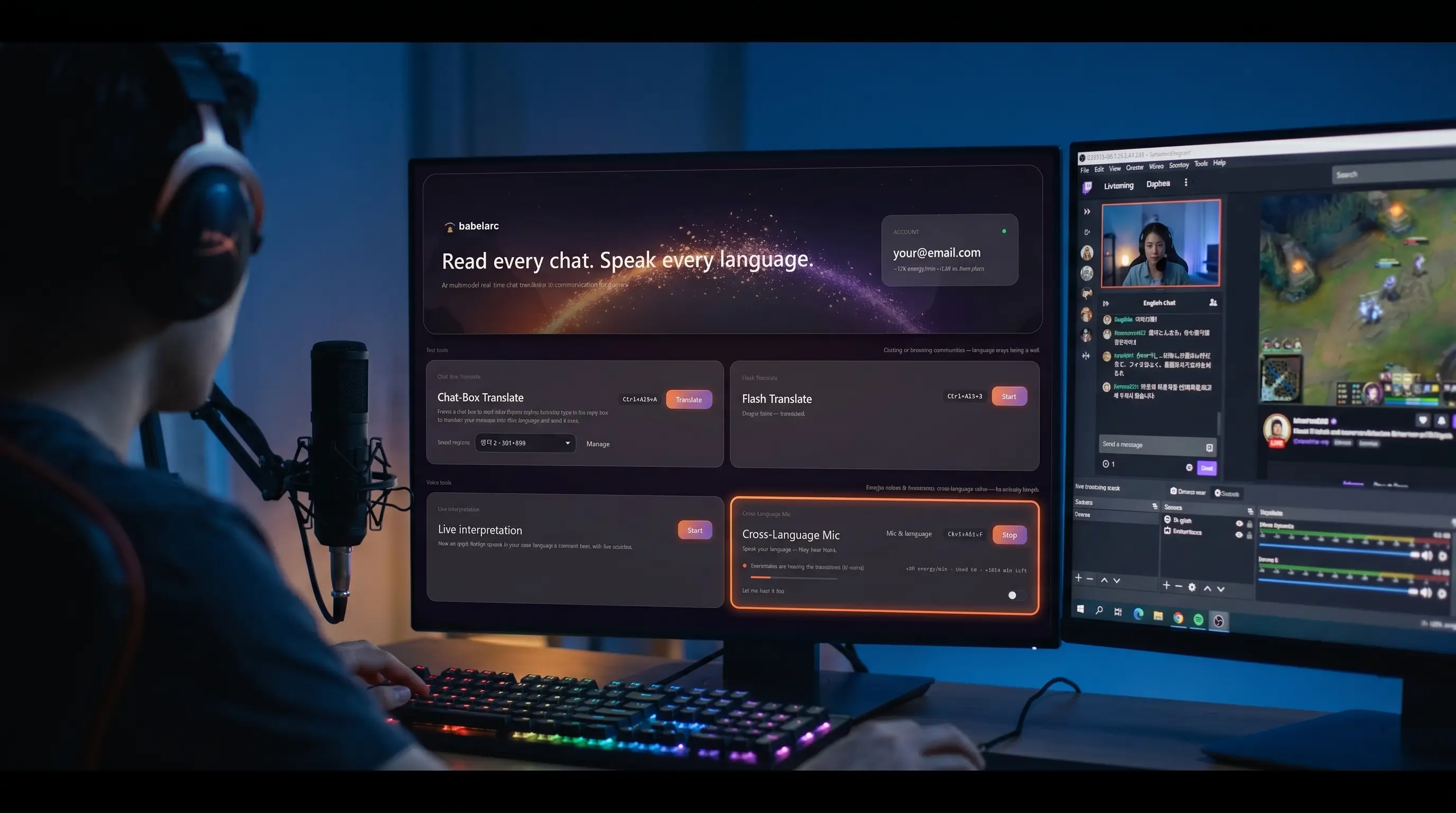
Running a stream across language boundaries has three pieces: what your foreign-language viewers are saying in chat, how you actually reply to them, and how you communicate with foreign-language co-stream guests or panellists. Babelarc covers all three with three tools.
Chat-Box Translate, both directions — read viewer chat + write back. Frame your stream's chat panel (Twitch / YouTube / Bilibili / wherever), Babelarc samples it in a loop and translates new chat lines so you can see what your foreign-language viewers are asking. Reverse direction is built in too: type in your language, Babelarc translates to whatever language you pick, you copy-paste into the chat input box (or into an OBS text source for on-screen response).
Cross-Language Mic — co-stream / voice with fans. Co-streaming with a foreign-language host? Start Cross-Language Mic, pick source and target language, set the Discord / OBS mic to the Babelarc virtual mic. You talk in your language; the guest hears theirs — and so does the audience you push to Twitch via OBS. Voice chat with fans works the same way.
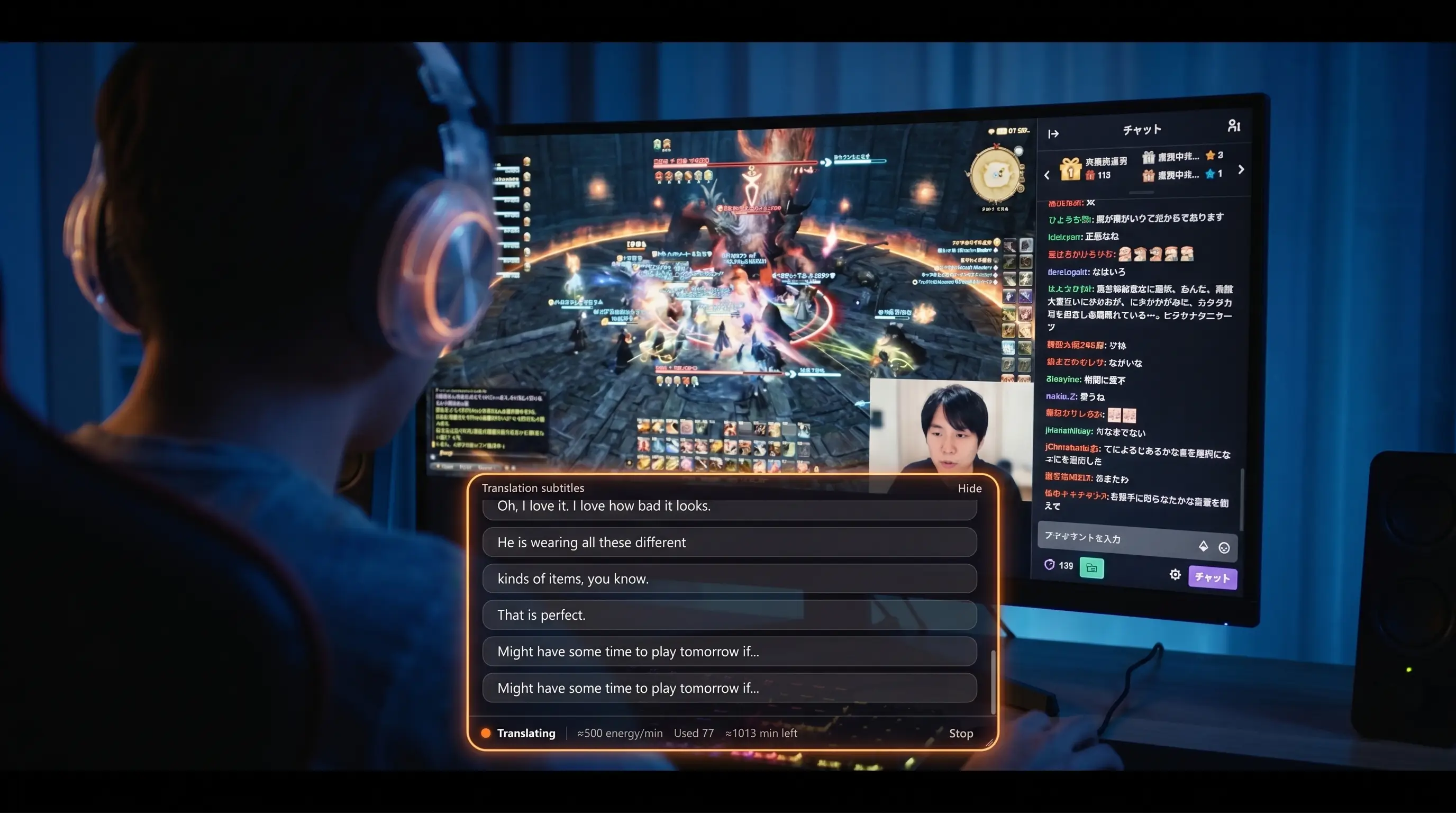
Live Interpret — study foreign-language peers / hear the co-stream partner. Studying overseas peer streamers for ideas, Babelarc takes the whole system audio or pinpoints a specific process (browser, OBS, Discord) as input and produces floating subtitles in your language. During co-streams, pair it with Cross-Language Mic so you can talk and read the guest's translated speech at the same time.
Critically: everything happens on your end as the streamer. Babelarc doesn't modify the stream output, doesn't call the platform's API, doesn't need platform-special permissions. The virtual mic runs through standard Windows audio routing; reverse-translated chat goes out through your normal account input — the platform sees you doing your stream like any other streamer.
Tools for streamer scenarios
Chat-Box Translate (Ctrl + Alt + A) — read chat + reply, both directions
Frame your stream's chat panel (Twitch chat / YouTube live chat / Bilibili chat / etc.). Babelarc samples it in a loop and translates new lines, so you see in real time what your foreign-language viewers are asking, hyping, requesting. Reverse direction works the same — type a reply in your language, pick the target, Babelarc translates and you copy-paste into the chat input box, or paste into an OBS text source for on-screen response. Now you can run a stream where every viewer feels heard in their language.
Cross-Language Mic (Ctrl + Alt + F) — co-stream + voice with fans
Pick your mic device and source / target language, Babelarc takes over the virtual mic. In OBS / Discord / Skype / Zoom / whatever co-stream tool, set the mic device to the Babelarc virtual mic. You talk in your language; the co-host hears theirs — and the audience you're pushing to Twitch via OBS hears the translated version too. If you run a voice chat with fans, fans hear their language too.
Live Interpret (Ctrl + Alt + D) — study peers / hear co-stream guests
Babelarc takes the whole system audio or pinpoints a specific process (browser, OBS, Discord) as input, translates it in real time and surfaces subtitles in a floating window in the corner of your screen. Studying overseas peers? Drop the subtitles right over the stream you're watching. Co-stream? Pair with Cross-Language Mic — you can talk and read the guest's translated speech at the same time.
Supported streaming / co-stream workflows
Streamer workflows are diverse — OBS pushing to a platform, the platform's own client app, Discord multi-host co-streams. Babelarc plugs into Windows-standard audio routing and screen-region OCR, so it's compatible across the board:
| Platform / workflow | Chat bidirectional | Peer audio translation | Virtual mic |
|---|---|---|---|
| Twitch | ✅ | ✅ | ✅ |
| YouTube Live | ✅ | ✅ | ✅ |
| Bilibili Live | ✅ | ✅ | ✅ |
| AfreecaTV | ✅ | ✅ | ✅ |
| Niconico Live | ✅ | ✅ | ✅ |
| Kick.com | ✅ | ✅ | ✅ |
| OBS Studio / Streamlabs (broadcast software) | ✅ with floating window | ✅ | ✅ |
| Discord (co-stream / panel) | — | ✅ | ✅ |
In principle, any Windows-based streaming workflow works with Babelarc — the table just lists the popular ones.
How streamers actually use Babelarc
Scenario 1 · A US streamer talking to global viewers on Twitch
You stream MMO guides on Twitch. Among your viewers are people from Japan, Korea, Brazil, and so on — they drop chat in their own languages asking about builds, thanking for gifts, sometimes even helping each other troubleshoot. You used to scroll past those. Not anymore.
Open Babelarc Chat-Box Translate (Ctrl + Alt + A), frame the Twitch chat panel, auto-translate on. Foreign-language chat shows up translated to English next to the original. You type "thanks for the gift!" in English, Babelarc translates to Japanese, you copy-paste into the chat input box — the Japanese viewer sees a reply in their own language, and your engagement metrics show it.
Scenario 2 · Co-streaming with a Japanese guest
You're co-streaming with a Japanese streamer to discuss a new game patch. Discord voice for the two of you, each running OBS pushing to your own channel. The guest speaks Japanese, you speak English — how to make this work?
Cross-Language Mic on (Ctrl + Alt + F), source English → target Japanese, Discord mic set to the Babelarc virtual device. You talk in English; the Japanese guest hears Japanese — and your Twitch audience hears the translated Japanese version through OBS. Live Interpret on (Ctrl + Alt + D), input source = the Discord process, the guest's Japanese is captioned in English on your screen. Both audiences hear their own language.
Scenario 3 · Studying a foreign-language peer
A new game launches and you want to see how the top Japanese streamers are approaching the meta — builds, gear paths, pacing. Watching them raw in Japanese is too slow for you.
Live Interpret on (Ctrl + Alt + D), input source = the browser process running the Twitch / YouTube stream, subtitle window parked in a corner. The streamer's Japanese commentary shows up as English subtitles. Pair with Chat-Box Translate over the chat panel — Japanese viewer discussion gets translated too. Take notes, prep your own stream tonight with what you learned.
FAQ
- Will using Babelarc get my streaming account banned?
- No. Babelarc runs entirely on your (the streamer's) end — it reads your screen and audio, doesn't modify the outgoing stream, doesn't call the platform's API, doesn't need any platform-special permission. The virtual mic uses standard Windows audio routing; reverse-translated chat goes out through your normal account input. From the platform's side you look like any other streamer.
- Does reverse-translation latency mess up chat interaction pace?
- Typical translation roundtrip is 1-2 seconds, which fits stream chat's natural async pace — viewer types, you read the translation, you organize a reply, you type, Babelarc translates, you paste, viewer sees the response. The whole loop feels like a streamer attentively replying to their audience.
- When I push to Twitch via OBS, do my viewers hear my actual voice or the AI translation?
- Your call, by routing. If you set OBS's mic source to the Babelarc virtual mic, your audience hears the translated version — useful when your audience is mostly the target language. If you set OBS to your physical mic, your audience hears your original voice and Cross-Language Mic is only for the Discord co-stream guest. Two paths, you pick what fits the show.
- Is the co-stream voice latency acceptable for show pace?
- Typical 1-2 seconds, which fits cross-language co-stream pace just fine — co-hosting across languages naturally has slight beats while everyone parses and replies, and this latency slips into that rhythm. Your audience watching the co-stream perceives two hosts in smooth conversation.
- Will the platform flag my reverse-translated chat replies as a bot?
- No. Reverse translation happens on your end — Babelarc gives you the translated text and you copy-paste it into the platform's native chat input box, sending normally. Babelarc doesn't call the platform's API, doesn't auto-click the send button, doesn't automate anything platform-side. From the platform's view it's you typing in chat.
- When studying peer streamers, does Live Interpret subtitle latency hurt comprehension?
- Typical 1-2 seconds, which matches the natural human pace of parsing a foreign-language translation. Study scenarios already include pauses for note-taking and rewinding, so the latency fits in cleanly. Much more efficient than waiting for the full VOD to come out and then watching with manual subtitles.
- Can my viewers see Babelarc's translation of chat overlaid on the stream?
- If you want to show all viewers the multi-language chat translations, you can use an OBS text source paired with Babelarc's floating-window screenshot as an overlay. But generally Babelarc is a streamer-side tool — you see the translations, decide how to reply, use reverse-translation to write back. What viewers see is the original platform chat and your replies.